#Provisioners
Provisioners are the ordered list of steps that run inside a VM after it boots. They run top to bottom; if any step fails, the build fails.
| Type | Purpose |
|---|---|
shell | Run shell or PowerShell commands inside the VM |
file | Upload a file from files (or ConfigMap/Secret) to a path in the VM |
reboot | Reboot the VM and wait for it to come back |
windows-update | Install Windows Updates (loop with reboots until done) |
handbuild | Pause the build for manual intervention via VNC |
#In the editor
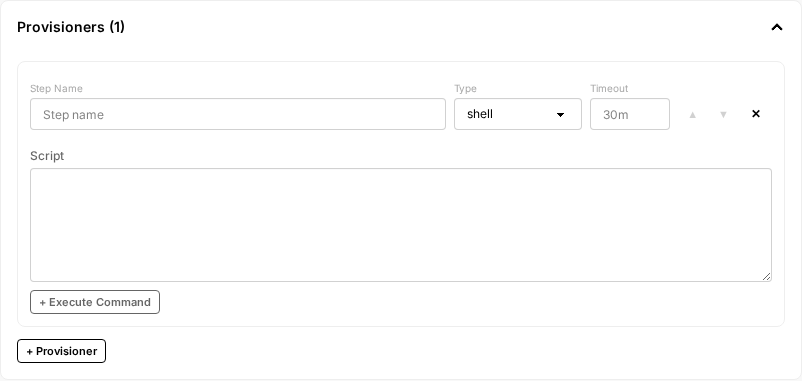
Each VM has its own Provisioners section. Click + Provisioner to add a step. Each step has:
- Step Name: a short label that shows up in build logs.
- Type: which kind of step (the dropdown options match the table above).
- Timeout (optional): caps this single step, e.g.
30m. - Type-specific fields that appear below depending on the Type selection.
Use the up/down arrows on a step to reorder it. Steps run in the order they appear.
#shell
Runs commands over SSH. Each shell provisioner is a single script. Variables and shell state do not carry across multiple shell steps. Use multi-line scripts within one step if you need state to persist.
In the editor: set Type to shell. The Script textarea below holds the script body. Click + Execute Command to override the default command wrapper (see below).
provisioners:
    - name: install-packages
      type: shell
      shell:
          inline: |
              sudo apt-get update
              sudo apt-get install -y nginx postgresql
    - name: configure
      type: shell
      shell:
          env:
              APP_ENV: production
          inline: |
              echo "Configuring for $APP_ENV"
              sudo systemctl enable nginx
Other shell fields:
script_from: load the script from a ConfigMap or Secret instead of inlining it.execute_command: wrap each command. Use{{ .Command }}as the placeholder. Common pattern for password-gated sudo:shell: execute_command: "echo 'mypass' | sudo -S sh -c '{{ .Command }}'" inline: | apt-get install -y htopstep_timeout: caps this single step (e.g.,"30m").
For PowerShell (when communicator.shell: powershell), the same syntax applies:
provisioners:
    - type: shell
      shell:
          inline: |
              Write-Host "Hello"
              Set-Service -Name BITS -StartupType Disabled
#file
Upload one file into the VM.
In the editor: set Type to file. Pick a File Ref (one of the entries from the top-level Files section) and a Destination path inside the VM.
# By reference to files (recommended)
- name: upload-cert
  type: file
  file:
      file_ref: cert.pem
      destination: /etc/ssl/certs/myca.pem
To source the content from a Kubernetes ConfigMap or Secret instead of a registered file, use file.source (YAML only):
- name: upload-config
  type: file
  file:
      source:
          config_map_ref:
              name: my-config
              key: app.conf
      destination: /etc/myapp/app.conf
Destinations for Windows must use Windows-style paths and double-escaped backslashes in YAML strings:
file:
    file_ref: ruddergrade.exe
    destination: "C:\\Windows\\system32\\ruddergrade.exe"
#reboot
Reboots and waits for SSH to come back. Use this any time you install kernel modules, change boot configuration, or want a clean state before the next step.
In the editor: set Type to reboot. The Reboot Command field is optional; leave it blank to use the default.
- name: reboot-after-drivers
  type: reboot
The default is sudo reboot (bash) or shutdown /r /f /t 0 (PowerShell). Override with reboot.command if you need something different.
#windows-update
Loops Windows Update until no new updates are available, rebooting between cycles. Internally implements the same search/filter/install/reboot logic as packer-plugin-windows-update.
In the editor: set Type to windows-update. Fill Search Criteria, Filters (one rule per line), and Update Limit.
- name: install-updates
  type: windows-update
  windows_update:
      search_criteria: 'BrowseOnly=0 and IsInstalled=0'
      filters:
          - "exclude:$_.Title -like '*Preview*'"
          - 'include:$true'
      update_limit: 1000
search_criteria is the Windows Update Agent search string. Common values:
| Criteria | Meaning |
|---|---|
"AutoSelectOnWebSites=1 and IsInstalled=0" | Important updates only |
"BrowseOnly=0 and IsInstalled=0" (default) | Recommended updates |
"IsInstalled=0" | Everything available |
filters are evaluated in order; first match wins. $_ is the IUpdate object. Allow-list pattern: explicit excludes followed by include:$true.
This step can take hours on a fresh Windows install. Set timeout accordingly.
#handbuild
Pauses the build so a human can drive the VM via VNC. The build resumes when a "continue" signal is sent. Useful for debugging a stuck install, capturing UI-only configuration, or one-off manual setup.
In the editor: set Type to handbuild. Fill Instructions with everything the operator needs to do during the pause.
- name: manual-config
  type: handbuild
  handbuild:
      instructions: 'Open Settings > Network > enable feature X, then send continue.'
While paused, attach to the VM's VNC console through the UI to interact with it directly.
An AI agent can work a handbuild step too, rather than waiting on a person: get_build reports the pause and the instructions above, the console tools drive the screen, and continue_build releases it. See Building with AI agents. Write the Instructions for either reader — say what to do, not where to click.